Space back.
Memories safe.
KeepOtter cleans up your photo library: with a reason for every suggestion, no server, no weekly subscription. And it rescues what is still hiding in your screenshots.

- Data Not CollectedThat is the App Store label, and that is how it is built.
- No account, no serverThe analysis runs on your iPhone.
- No weekly subscriptionA year or forever, nothing else.
How much space do you want back?
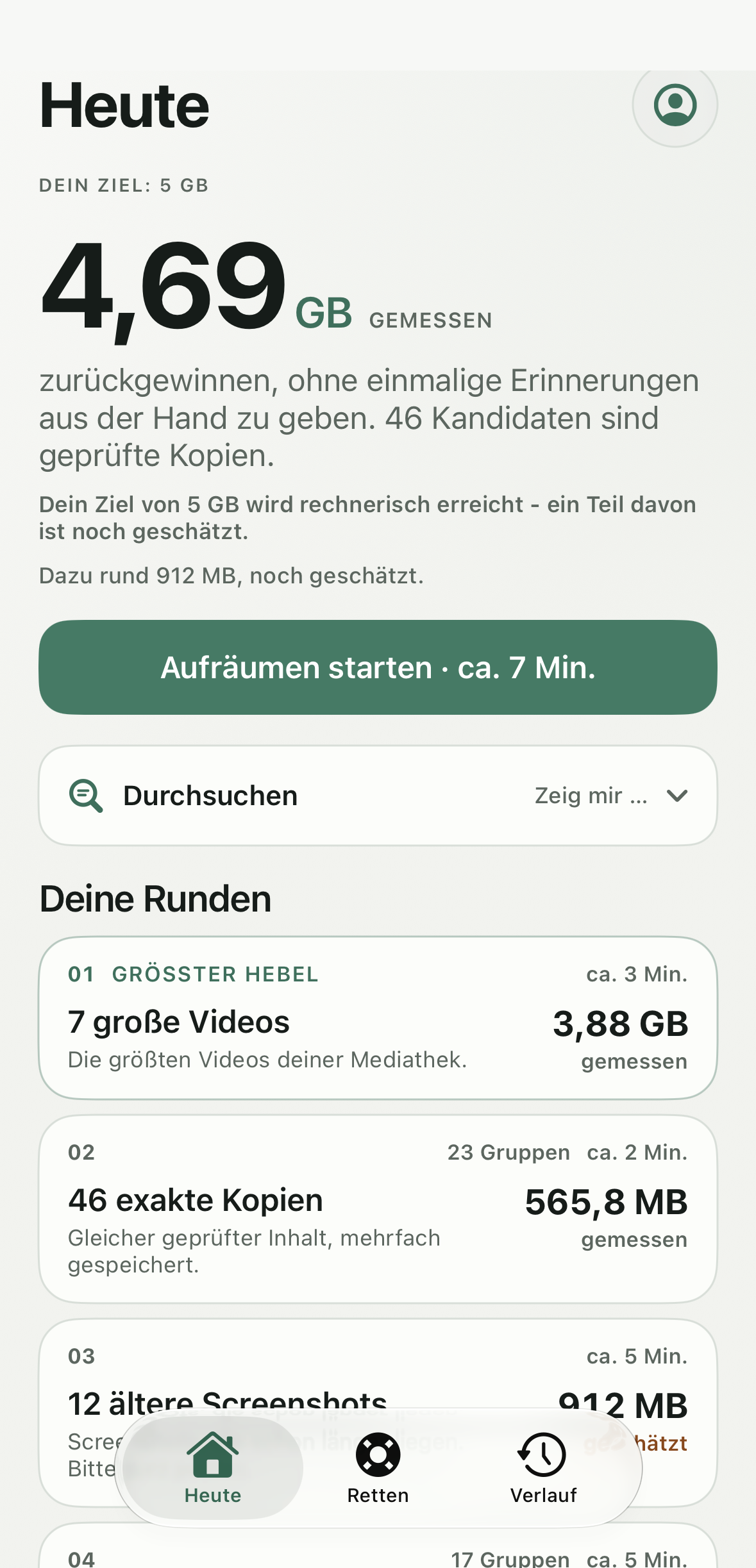
That is the first question KeepOtter asks. Not: what do you want to delete? From your goal, the app works out the shortest path: large videos first, then exact copies, old screenshots, series. Sorted by space per minute of decisions.
- 1 GB Quick tidy-up
- 5 GB A proper clean-up
- Everything As much as possible
This is a goal, not a promise. What is really possible only shows after the scan on your iPhone. Nothing is deleted yet: you review every suggestion.
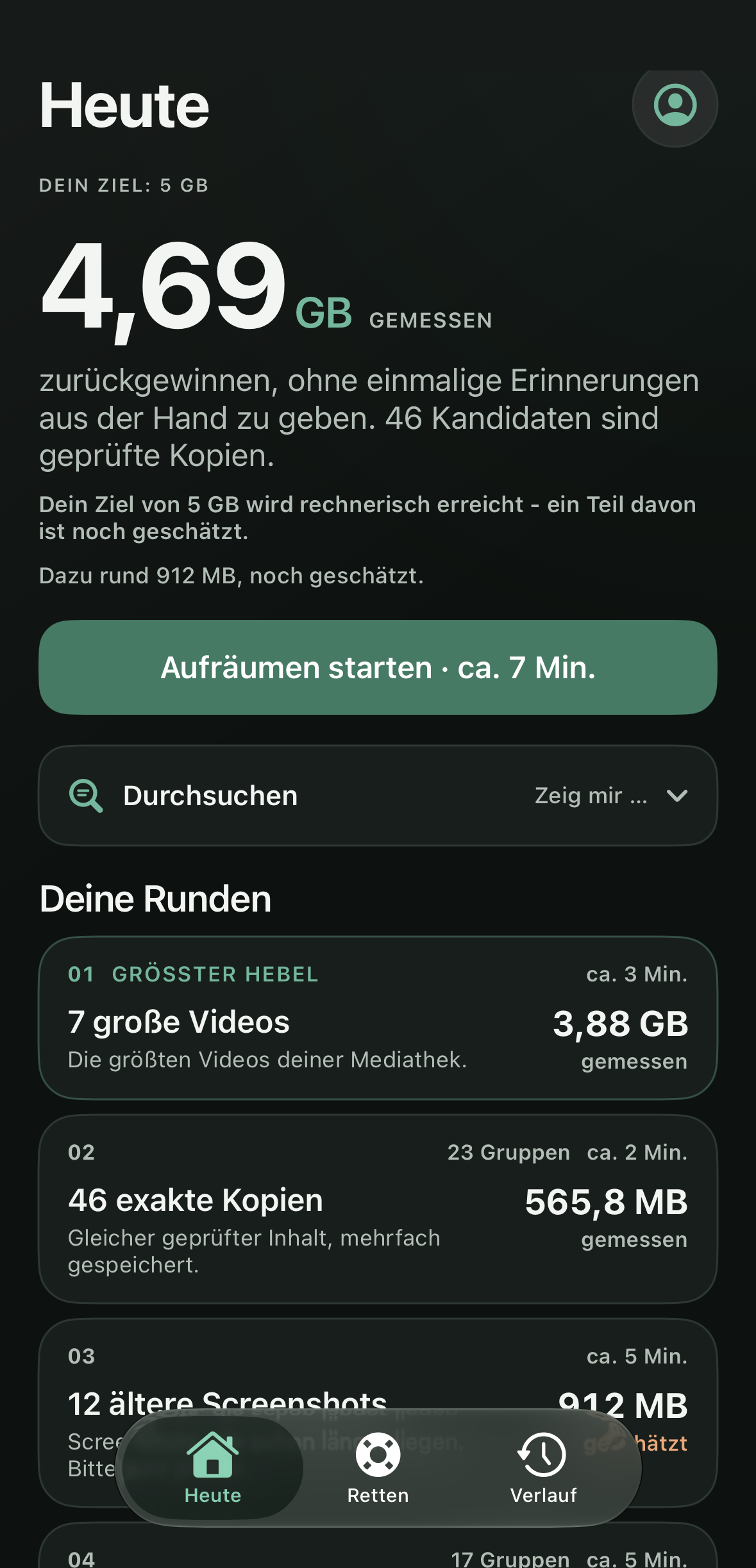
- 7 large videos 3.88 GB The largest videos in your library. measured · about 3 min
- 46 exact copies 565.8 MB Same verified content, stored more than once. measured · about 2 min
- 12 older screenshots 912 MB Rescued or empty. still estimated · about 5 min
Sample library, exactly as KeepOtter shows it. Your numbers are measured on your iPhone.
Why this one?
Every suggestion carries one of four levels. Always visible, always explained, never a gut feeling.
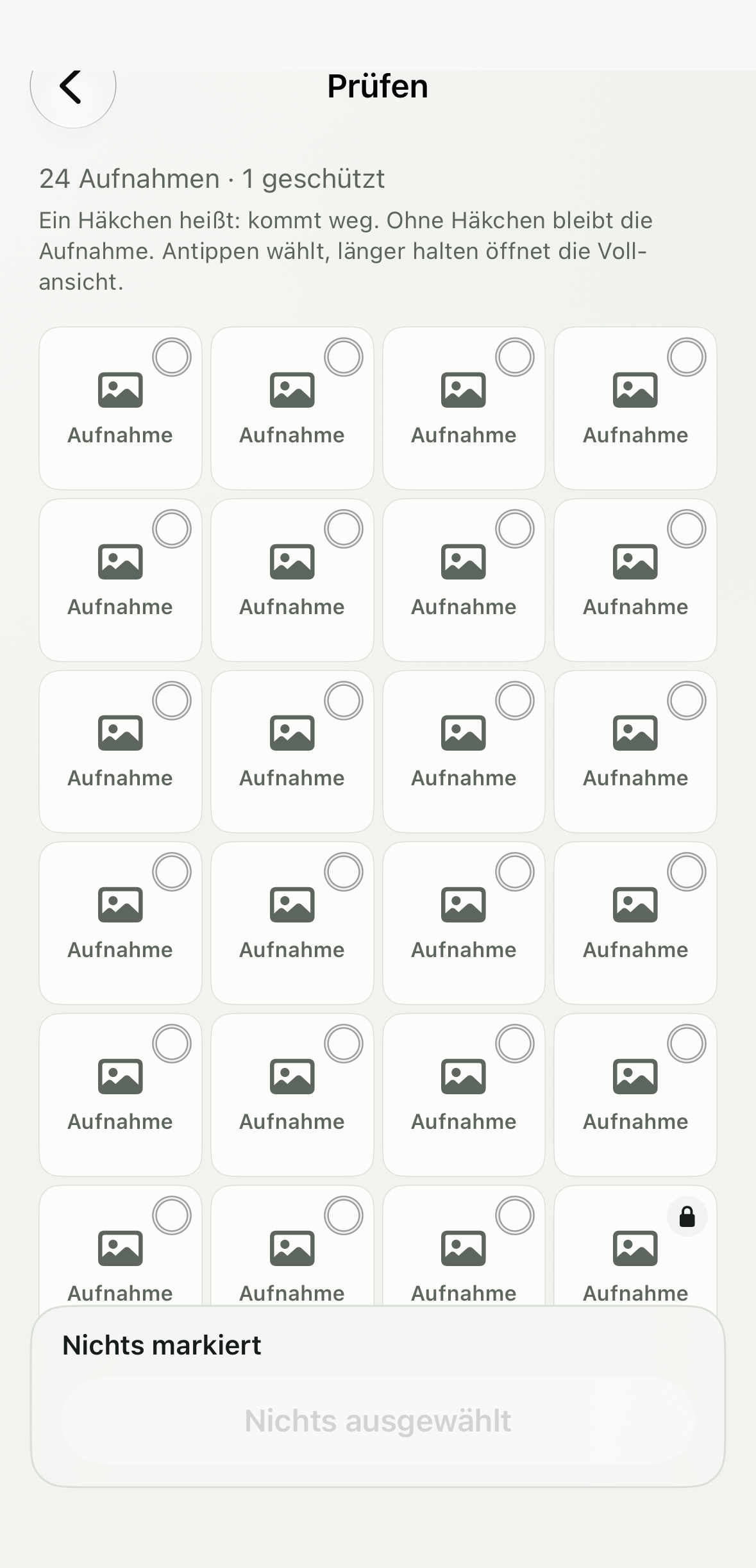
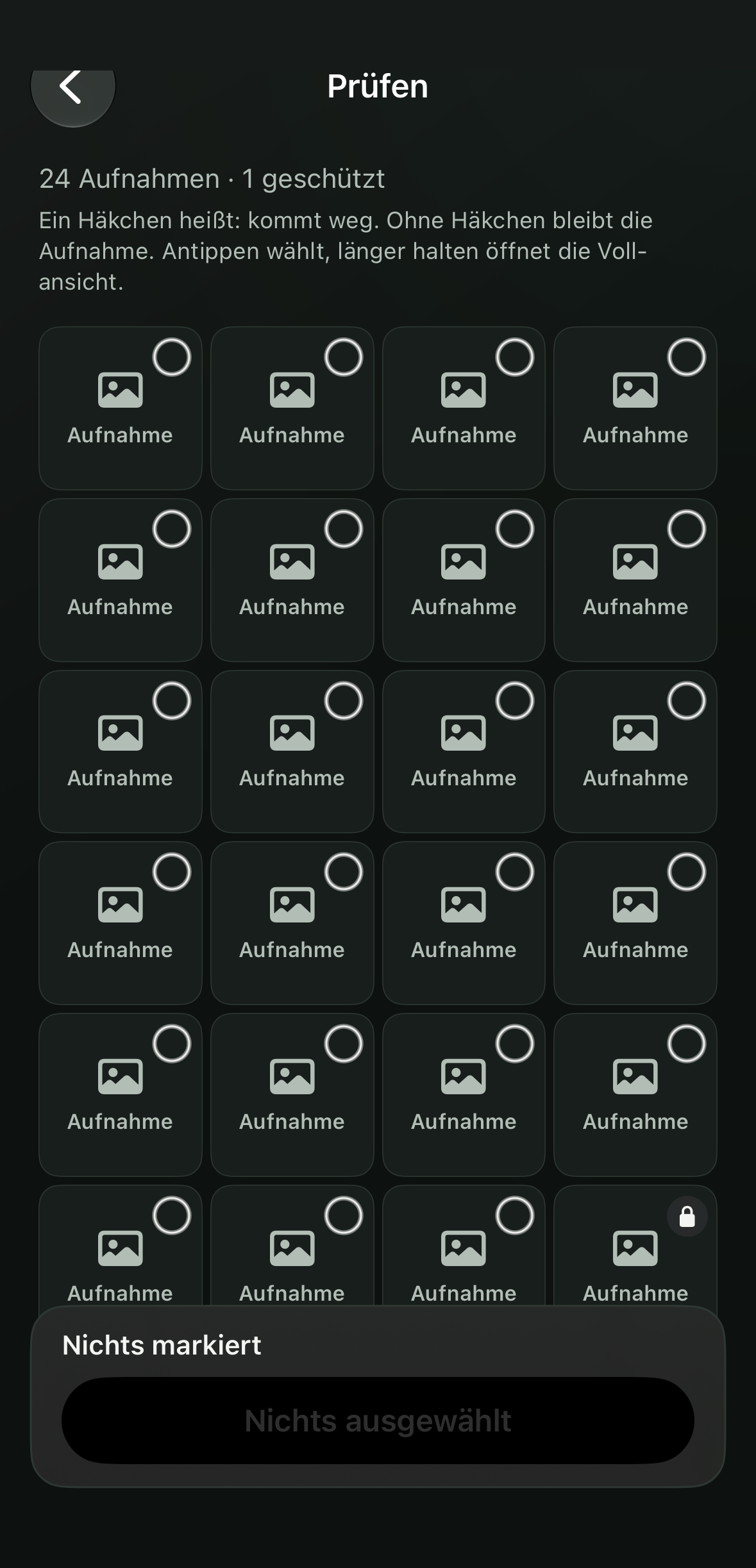
A checkmark means: goes. No checkmark, the shot stays. Tap to select, hold to open the full view.
- Very safe
Technically identical copy. Preselected, because nothing is lost.
“Same verified content, stored more than once.”
- Probably redundant
Same series, and a better shot exists. Suggested, with a note.
“4 shots of one series within 2.1 seconds. This one is sharper and larger than the other three.”
- Compare
Similar, but with visible differences. Never preselected.
“Several shots within a few seconds. You decide which one stays.”
- Protected
Favorite, edited, in an album, or one of a kind. Cannot be selected, not even by hand.
“The only shot with a location within 7 days.”

One-of-a-kind memories are protected.
KeepOtter never suggests the only photo of a day. Nor the only one with a location that week. Favorites, edited pictures and albums stay, and so do sensitive documents.
What is still hiding in screenshots
These 183 screenshots are probably no longer needed. 19 of them still held links, dates or codes. KeepOtter finds them before the screenshot goes.
Sample numbers. Yours are counted on your iPhone.
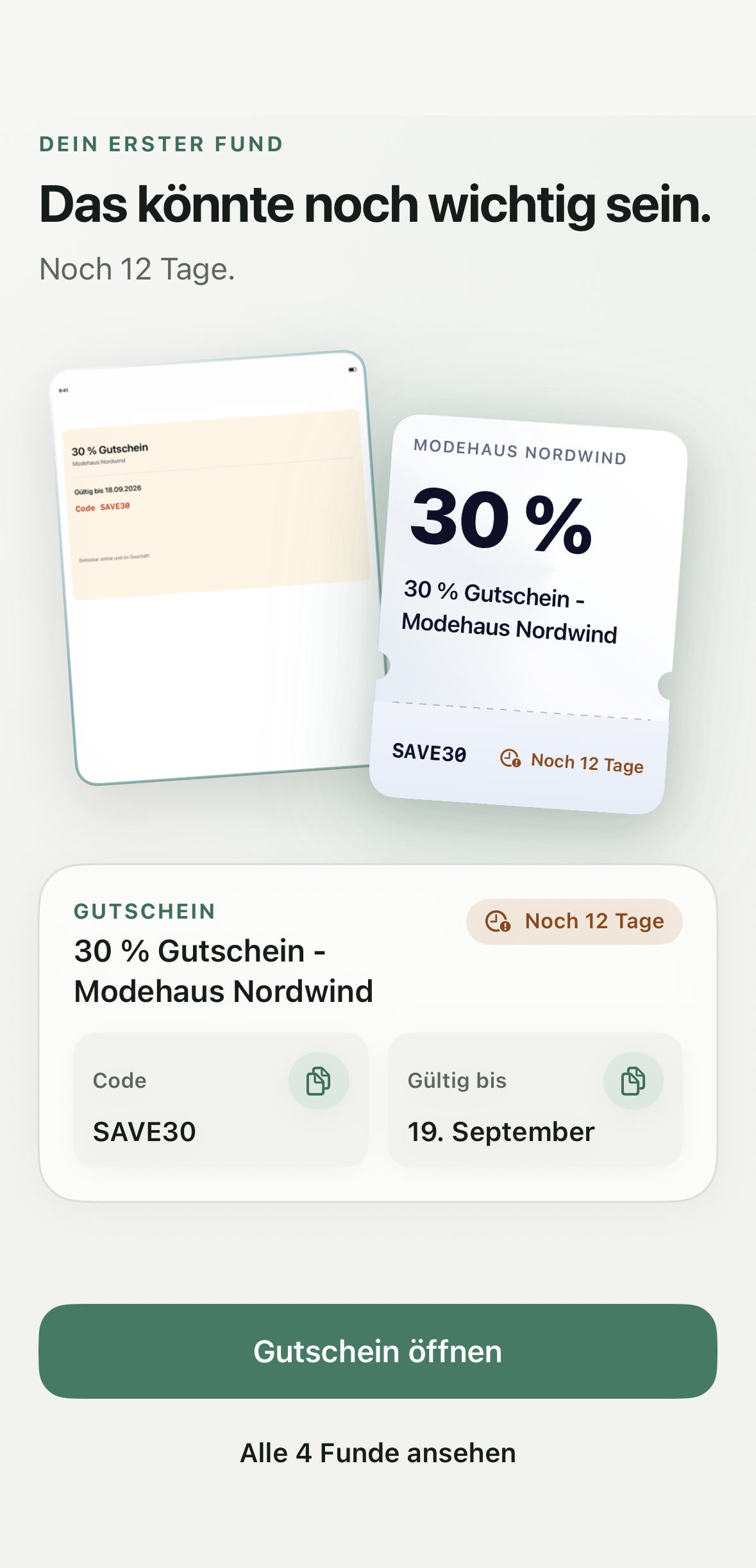
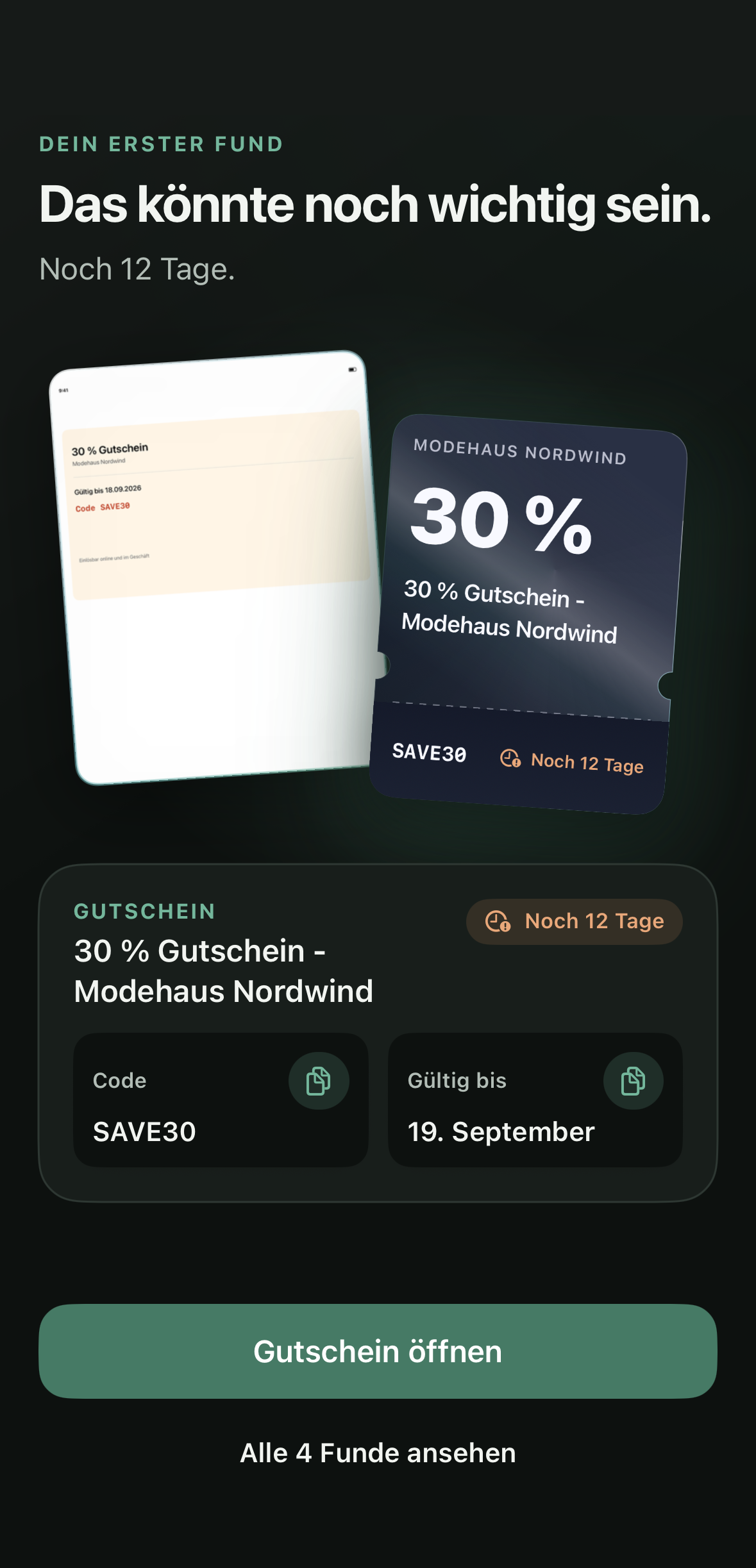
The find moment: voucher recognized, code and deadline read. The original stays until you decide.
Before the screenshot goes
Save first, then delete.
- Save link
- Add to calendar
- Copy code
- Copy text
A find moves to “Rescue” and stays there with its deadline. Marking a find as done and deleting a photo remain separate decisions.

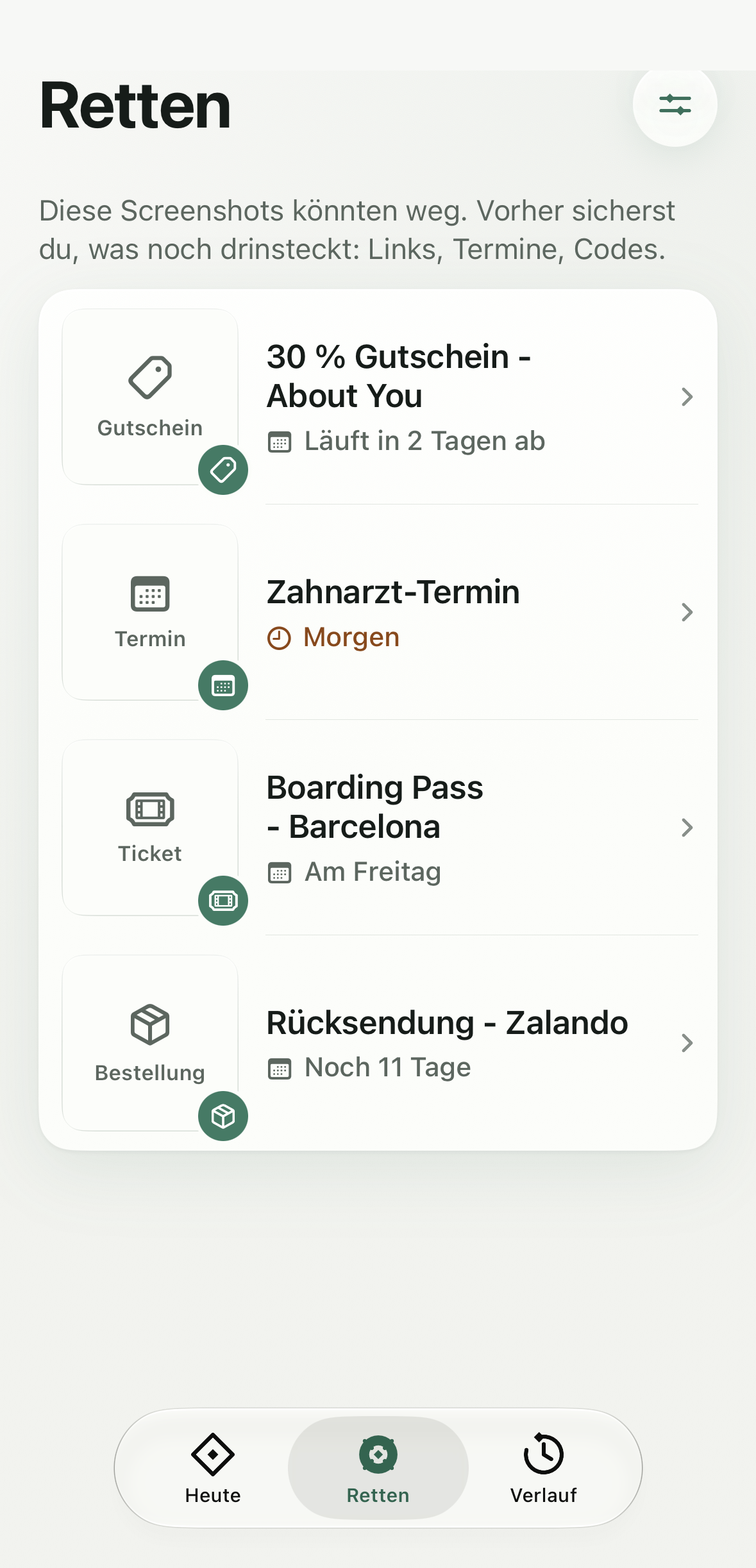
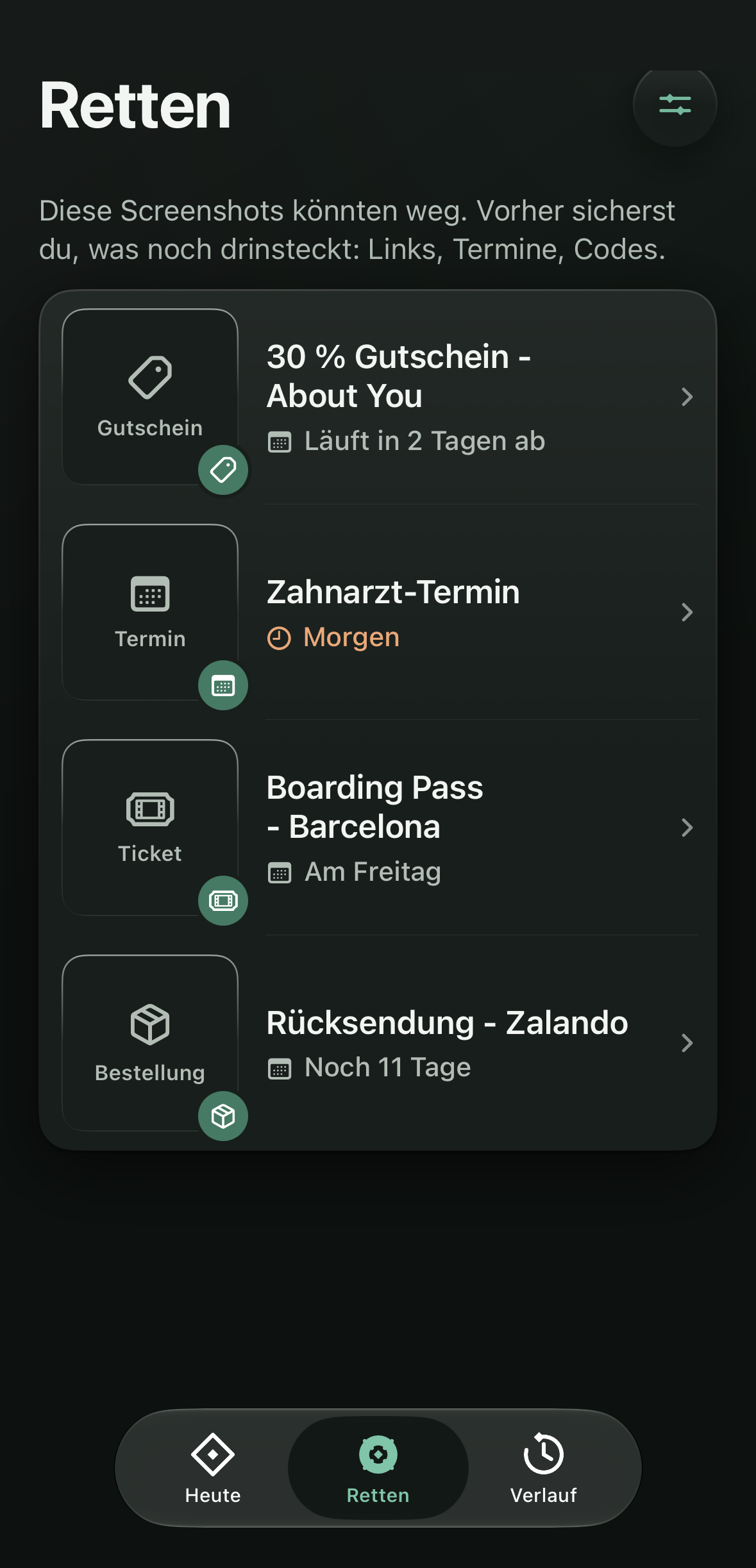
These screenshots could go. First you save what is still inside: links, dates, codes.
It comes back
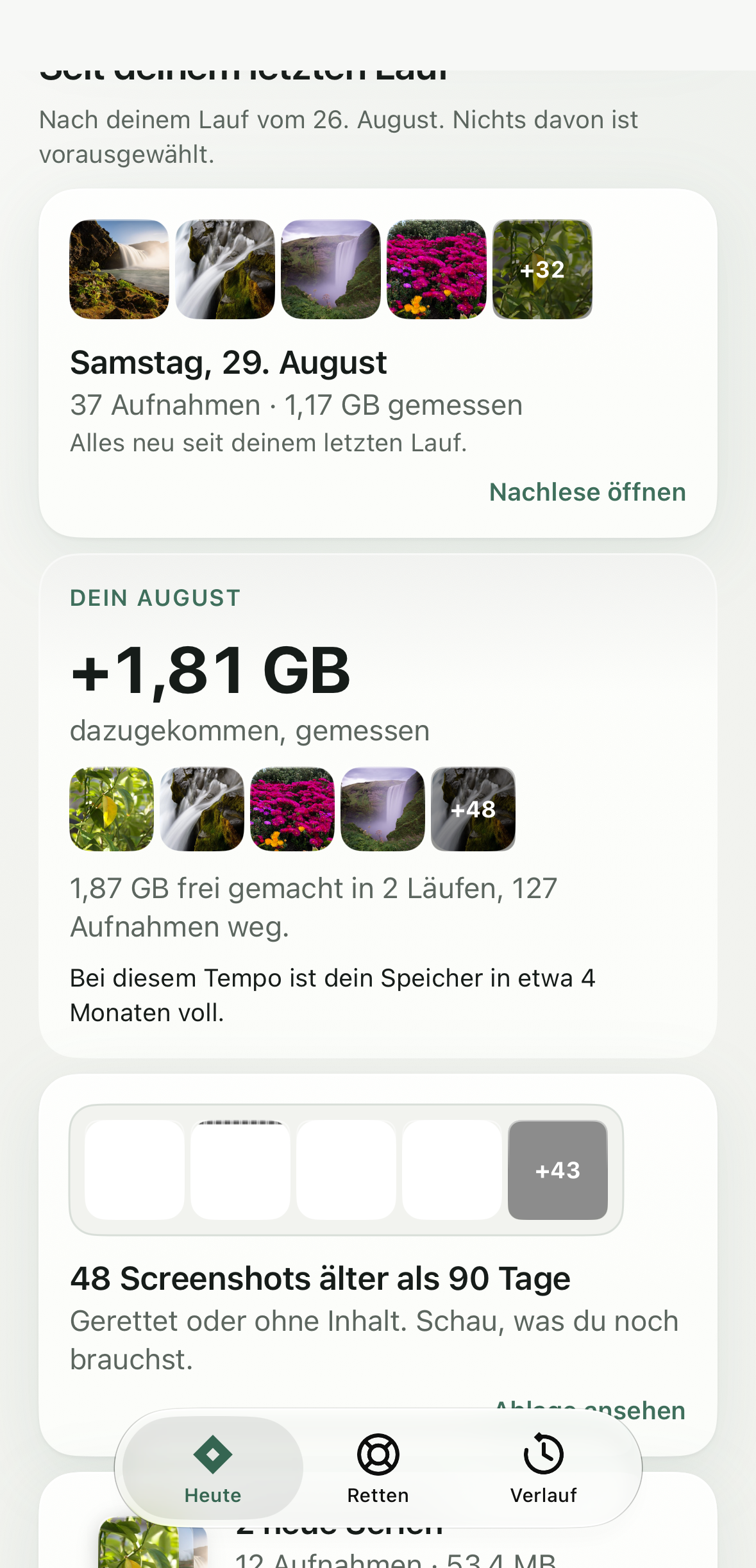
Cleaning up is not a one-off. KeepOtter checks in when it is worth it. Everything can be switched off, nothing deletes on its own.

-
Event recap
“Saturday, August 29: 37 shots, 1.17 GB measured.”
After a full day, the recap sits on “Today”. Series and copies are presorted, nothing is preselected.
-
Monthly report with storage forecast
“Your August: +1.81 GB added, measured. At this pace your storage is full in about 4 months.”
Added, freed, net. Measured and estimated never share a number.
-
Screenshot shelf
“48 screenshots older than 90 days. Rescued or empty.”
What is saved or holds nothing else moves to the shelf after 90 days. You set the period yourself.
Sample library. Notifications are local, only on request and never more than one a day.
Your iPhone can do this too
KeepOtter does not sell you anything the iPhone already does. These four are worth it on top, and the app points you to them.
-
Merge duplicates
Photos recognizes exact copies itself and merges them into one picture.
Photos app, then Collections, then Utilities, then Duplicates.
-
“Recently Deleted” is your second net
Everything KeepOtter deletes stays in “Recently Deleted” for 30 days and can be restored there.
Photos app, then Collections, then Utilities, then Recently Deleted.
-
Storage recommendations from iOS
iOS itself suggests what saves space: large attachments, old conversations, unused apps.
Settings, then General, then iPhone Storage.
-
Optimize iCloud Photos
Originals stay in iCloud, the iPhone keeps small versions. That saves space before you delete anything.
Settings, then your name, then iCloud, then Photos, then “Optimize iPhone Storage”.
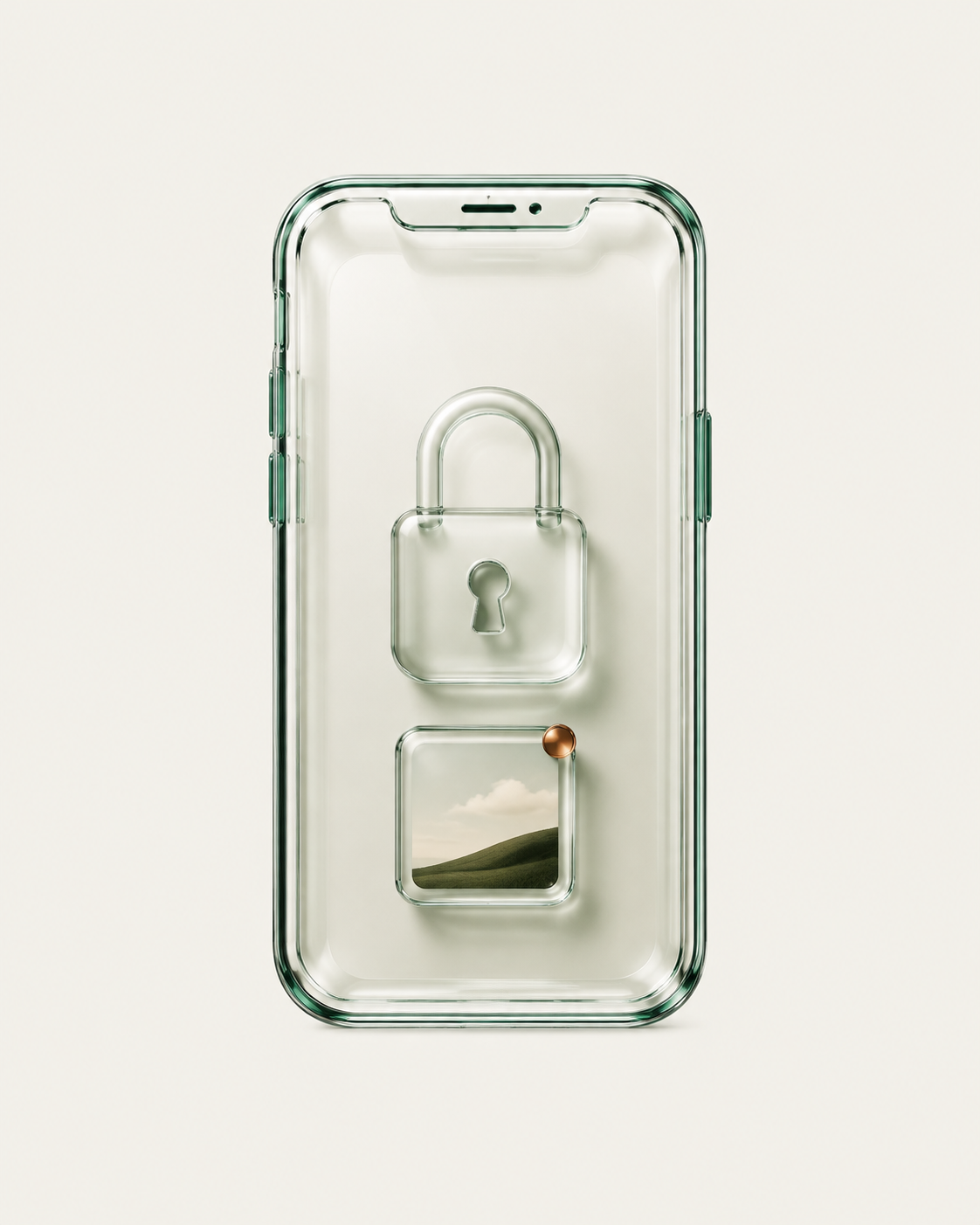
This app has no server you would have to trust.
- Airplane Mode test
- Turn on Airplane Mode. KeepOtter still works, because everything happens on your iPhone.
- App Store label
- “Data Not Collected.” No account, no analytics service, no advertising identifier.
- This site
- No cookies, no tracking. Only your light or dark choice stays in your browser.
No weekly subscription. Ever.
No free trial that renews itself. No €9.99 a week. The whole plan is free, and so is the first gigabyte.
Free
€0
- The whole plan, measured on your iPhone
- Rescue screenshots, no limit
- Deleting the first gigabyte is free
KeepOtter Pro
€24.99
per year, cancel anytime
- All rounds, no limit
- Series and format twins
- Recap, monthly report, shelf, widget
KeepOtter Pro forever
€59.99
once, no expiry
- Everything in Pro
- No subscription, no renewal
- With Family Sharing
Purchases go through Apple. With Family Sharing you share Pro with up to five more people. Prices in euros including VAT, as of 2026.
Questions
More answers on the support page (German).